Frequently Asked Questions

For your convenience, a list of frequently asked questions is provided below. Please be sure to review this list, as it is very possible that your question has already been answered here. If the solution you seek is not here, please feel free to contact us.

Frequently Asked Questions


Q01: After I join video files to AVI files, some of them files can't be played or I can only get the audio playback, why?

A: There are many reasons can cause this error. The most common reason is that the proper codec can't be detected. Maybe the following information can give you some help in downloading and installing AVI video codec.

Intel Indeo Video Codec and I263 Video Codec, download from http://support.intel.com/support/createshare/camerapack/CODINSTL.HTM

Microsoft MPEG-4 Video Codec (Version 1, 2, 3), these codecs are included in the Windows Media Tool, download it from http://www.microsoft.com/windows/windowsmedia/

DivX Codec, download it from http://www.divx.com/divx/

Aware Inc.'s Motion Wavelets Video Codec, download it from http://www.aware.com/telechoice/products/compression/motionwavelets.htm

Top


Q02: How can I know what codec an AVI file is using?

A: At first, right-click on the AVI file in Windows Explorer, and then click Properties item in the popup menu. At last, please select the Summary tab in the popup dialog, and you can get all information you need.

Top


Q03: Is there some limitation to the format of the input?

A: Free Video Joiner allows you to join video files in nearly all popular video formats like AVI, MPEG, H.264, SWF, MOV, WMV, etc. for playback on popular devices like iPod, iPad, iPhone, PSP and so on.

Top


Q04: Can I join several videos in different formats?

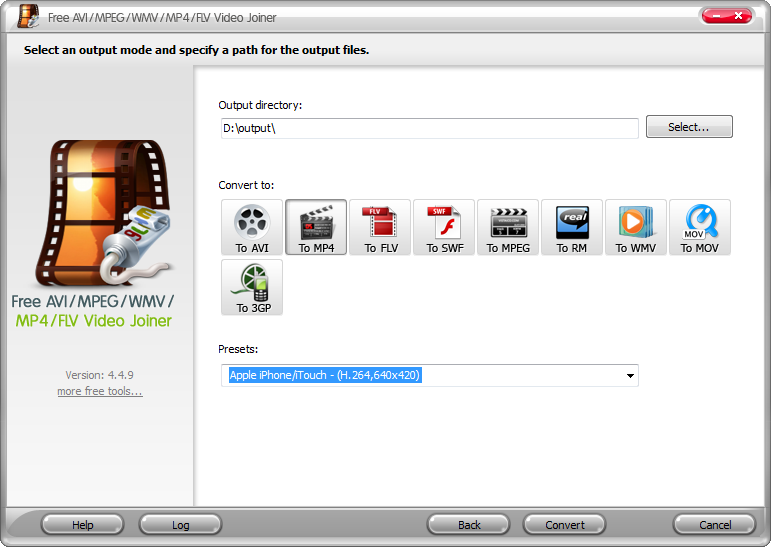
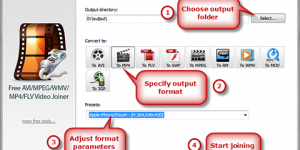
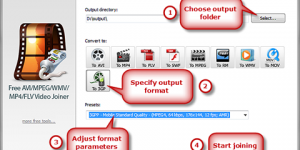
A: Yes, of course. You can load video files with different formats and output them as a whole one. And before start joining, you can select the output format to your actual need.

Top


Q05: I'd like to adjust the order of the videos that I want to join. How should I do?

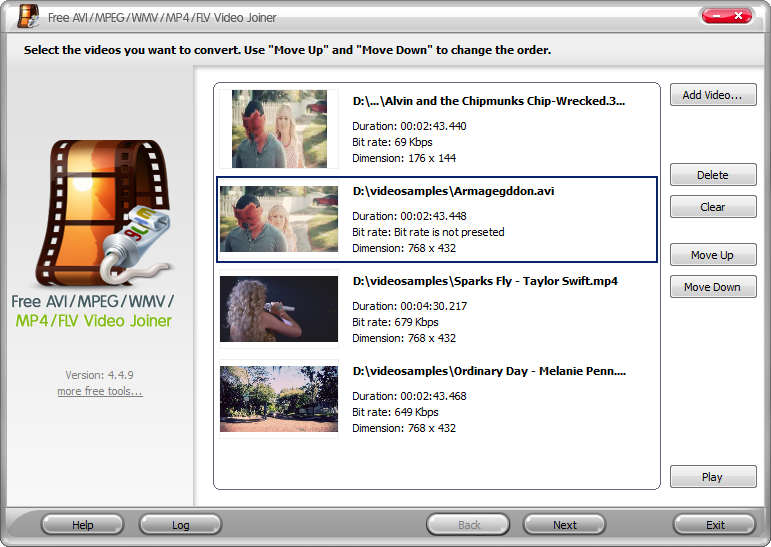
A: After loading videos, please highlight the video you want to move and click "Move Up" or "Move Down" to move it to the ideal position. You can also directly drag it to the place you want.

Top


Q06: Does Free Video Joiner support joining video files without re-encoding?

A: Yes, Free Video Joiner supports joining video file without re-encoding, but it only supports joining AVI, MPEG, MP4, and FLV without re-encoding.

Top


Q07: What is the output presets?

A: The output preset is a set of output parameters used in conversion. All parameters have been setup well in advanced.

Top


Q08: Does Free Video Converter support audio conversion?

A: Yes it does. It supports various video and audio formats. The conversion is in both ways - video to audio and audio to video.

Top


Q09: How long will it take to convert a video file?

A: It is hard to answer it generally. The time depends on many elements such as the speed of the CPU, duration of the input video, quality of the output video and so on. The converter shows an estimated "Time Remaining" when the conversion is processed.

Top


Q10: The size of the output video is too large, why and how can I get it smaller?

A: The size of the output video is decided by the quality of it. If you want to get it smaller, please decrease the quality by selecting a preset with lower parameters such as Video Bitrate, Audio Bitrate, Sample Rate, etc. And of course, the shorter the time duration, the smaller the file size is.

Top


Q11: I am not satisfied with the output file? How can I make it better?

A: The output file quality depends largely on the source file. You may choose a higher bit rate or modify settings like contrast, dimensions, length, and audio volume, etc., if the output one is not as good as the original one.

Top


Q12: Where can I find the output video?

A: The output video will be saved to the Output directory, which can be specified before conversion. After conversion you can hit the "Open folder" to directly go to the output folder.

Top


Q13: Which one is better in the MP4 output forms if I want to get better quality?

A: As far as the output quality is concerned, H.264 would provide the best.

Top


Q14: My conversion fails, what can I do?

A: Some of the files are considered unconvertible for different and various reasons. If you have such a file, please send us a support message via email at support@free-video-joiner.com and tell us about your problem. We will do our best in order to fix the problem and try to get your video file converted, free of charge.

Top


Q15: I saved the converted video on my USB disk, which was connected with PS3 later, and I failed to play the videos on PS3, why?

A: To play the output video files on PS3 from a USB disk, please first format the disk using FAT32 file system (NTFS file system is not supported by PS3), and then create a folder named "VIDEO" on the root of the disk and copy all the output video files to the folder. Follow these steps and you will succeed.

Top


Q16: I cannot play the converted flash?

A: Make sure you have installed the Flash 8 Player from macromedia website. The following shows the flash player version required to playback the flash format type.

Flash 8 SWF/FLV - Flash Player 8
Flash MX SWF/FV - Flash Player 6 and above
Flash 3-6 SWF - Flash Player 3 and above
Flash Vector SWF - Flash Player 3 and above

Top


Q17: Why does it take so much time for the conversion?

A: Actually it has something to do with several factors: source file types, the output quality settings and the computer environment, etc. Generally the higher the higher quality takes longer. Meanwhile, a faster processor brings faster conversion.

Top


Q18: What is VIDEO_TS?

A: VIDEO_TS, short for video transport stream, is one folder of most video DVDS. When you insert a video DVD into your computer, you can open the DVD and view the contents just like a folder on your hard drive. Most video DVDs have two folders in the root directory - AUDIO_TS and VIDEO_TS. The VIDEO_TS folder contains all the DVD's video data and playback information, including .VOB (video object) files, .IFO (information) files and .BUP (backup) files.

Top


Q19: How do I create VIDEO_TS folder for video DVD burning?

A: First, you have to create a folder named "VIDEO_TS" on your harddisk and then copy all the necessary files in this folder. Afterwards, burn the folder with Free DVD-Video Burner.

Top


Q20: Why did I fail to extract and encode MP3 from Audio CD?

A: (1) Your CD-ROM doesn't support audio data extraction. In this case, Free DVD-Video Burner can't work at present. You can try other applications which support analog access method if you can play your CD with the sound card. The default CD-ROM type was set incorrect and doesn't accord with your CD-ROM.

(2) Some sectors of your CD were damaged. In order to keep perfect quality copies of the original music, Free DVD-Video Burner will stop extracting when meet error sectors and tried several times. You can clean your CD and try again.

Top


Q21: The ripped MP3 files play at wrong speed and/or shows wrong length. What's wrong?

A: This is nothing wrong with the MP3 files extracted from music CD with Free DVD-Video Burner. Some MP3 players (hardware or software) have problem playback 48000Hz audios which is the default sample rate on DVD. And some players can't deal with the Variable Bitrate (VBR) MP3 format.

Top


Q22: What's the difference between CDDB and CD-Text?

A: CDDB, short for Compact Disc Database, is a licensed trademark of Gracenote, Inc. It is a database for software applications to look up audio CD (compact disc) information over the Internet. This is performed by a client who calculates a (nearly) unique disc ID and then queries the database. As a result, the client is able to display the artist name, CD title, track list and some additional information.

The database is used primarily by media players and CD ripper software. If a CD is not recognized by a media player or CD ripper it can be added to the database if you fill in the names and artists etc. in a media player.

CD-Text is an extension of the Red Book Compact Disc specifications standard for audio CDs. It allows for storage of additional information (e.g. album name, song name, and artist) on a standards-compliant audio CD. The information is stored either in the lead-in area of the CD, where there is roughly five kilobytes of space available or in the Subchannels R to W on the disc, which can store about 31 megabytes. The latter areas are not used by strict Red Book CDs. The text is stored in a format usable by the Interactive Text Transmission System (ITTS). Utilities exist to automatically rip CD-Text data, and insert it into CDDB or freedb.

CD Text information can be encoded on a CD during mastering or replication. Most mastering facilities will encode CD Text free of charge, while CD replicators may charge extra for this service. CD Text information will include CD title, track titles and artist's name. However, be advised that only compatible players can display CD Text. These may include car systems, home Hi-Fi systems, some DVD players, portable CD players, etc. Not all CD/DVD players are CD Text compatible.

Top


Q23: Can all CD-ROM drives convert CD to WAV, MP3, or WMA?

A: Although most current CD-ROM drives can convert digitally, only CD-ROM drives that support the Redbook audio format and have a reasonable level of seeking accuracy can convert tracks from CDs to disk in digital format. Many older CD-ROM drives and some new ones do not support this capability.

Top


Q24: How to avoid bad burn?

A: To avoid bad burn discs, firstly, make sure that there's nothing wrong with the file to be burned or the disc you use. You'd better burn them when the machines are mostly idle and, if possible, use comparatively slow burning speed. For error checking, the "Test Mode" Free DVD-Video Burner provides is very practical and we suggest you use it to simulate burning to avoid unpredictable waste of time and money.

Top


Q25: Is it legal to download the online FLV video to my PC?

A: Yes, it is legal. When you watch an online FLV video in flash from a website (like YouTube.com), the video will be automatically downloaded to the "Temporary Internet Files" folder of your hard disk. That means that the file is saved on your computer while you watch the video and there remains until you delete it. Our application does the same thing and it allows you to choose the download folder. However, the downloaded FLV files should be for individual use only. We suggest you not to convert any authorized material.

Top


Q26: Why can't I convert videos from YouTube with the right address?

A: Maybe you are using an older version of Free YouTube Downloader. Please download the latest version of this product. Remember to keep the application updated: the YouTube is always changing the website, so we will keep promoting our software.

Top


Q27: Can I add more than one URLs to the task list?

A: Yes, of course. You can add multiple tasks to process. You can also copy many URLs and click "Paste" once to paste them all.

Top


Q28: Can I download the YouTube videos directly in MP4 format?

A: Free YouTube Downloader provides the download priority settings and you can set the file format and quality you want to download them as long as the video of the format/quality you require is provided on the video page.

Top


Q29: Is Free YouTube Downloader able to turn off the computer automatically when I sleep?

A: Yes, you can make the "Shut down the computer after all tasks are finished" option checked during conversion.

Top


Q30: What if I have some ideas on your products?

A: We welcome suggestions, questions, and comments. Let us know what you are thinking. What are we missing? What areas would you most like to see improved? Your input will help us to prioritize future work. If you have questions or suggestions, please feel free to contact us at support@free-video-joiner.com.

Top


Q31: What information should I offer you to solve my problem?

A: As to ASAP to find out the problem you met, you are suggested to describe all the details about the problem and inform us what your system configuration is, how you operated and what error occurred as well. If possible, you'd better send us your files for investigation.

Top


Awards

Awards

View awards received by MediaRightSoft software.

Downloads

Downloads

Download MediaRightSoft software.